# Writing Azure Functions with Rider
With the release of [Rider 2019.1](https://blog.jetbrains.com/dotnet/2019/04/30/rider-2019-1-arrived/), there's now support for [Azure Functions](https://azure.microsoft.com/en-us/services/functions/) in the form of a [plugin](https://plugins.jetbrains.com/plugin/11220-azure-toolkit-for-rider). Let's find out how easy it is to run a Function locally.
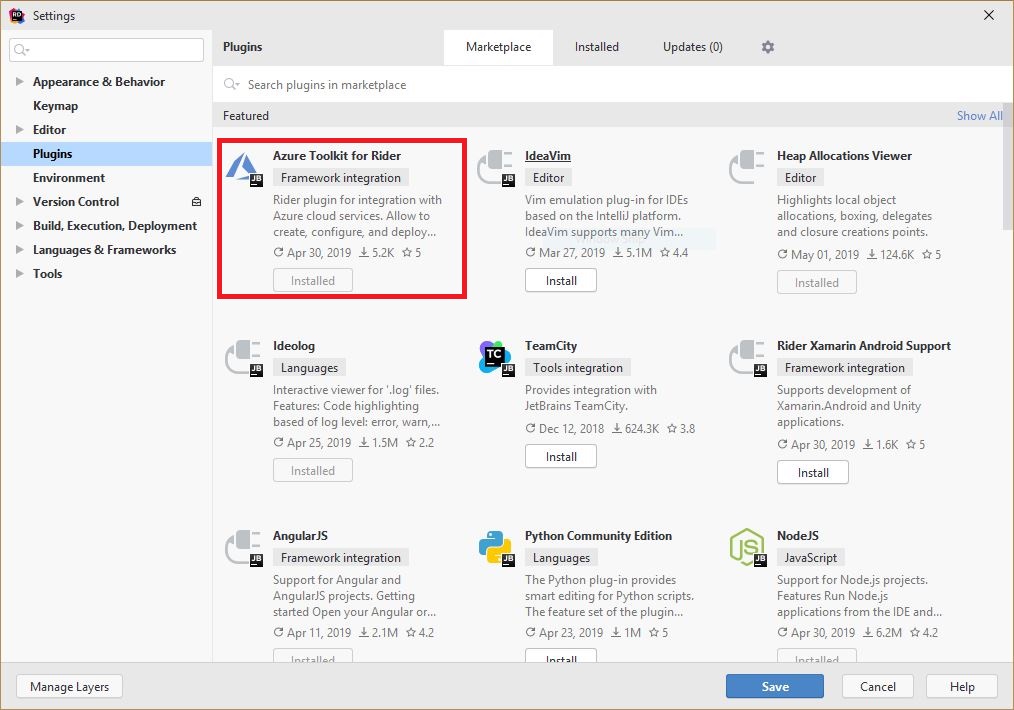
The first step is to install the plugin that will enable support for Azure Functions. Go to the _Settings (ctrl+alt+s) > Plugins_ tab and search for "_Azure Toolkit for Rider_" and install it. I think it's a very popular plugin, or Jetbrains seriously wants to promote it, because it was the first plugin even when I hadn't installed it yet. Could be alphabetical too, not sure.
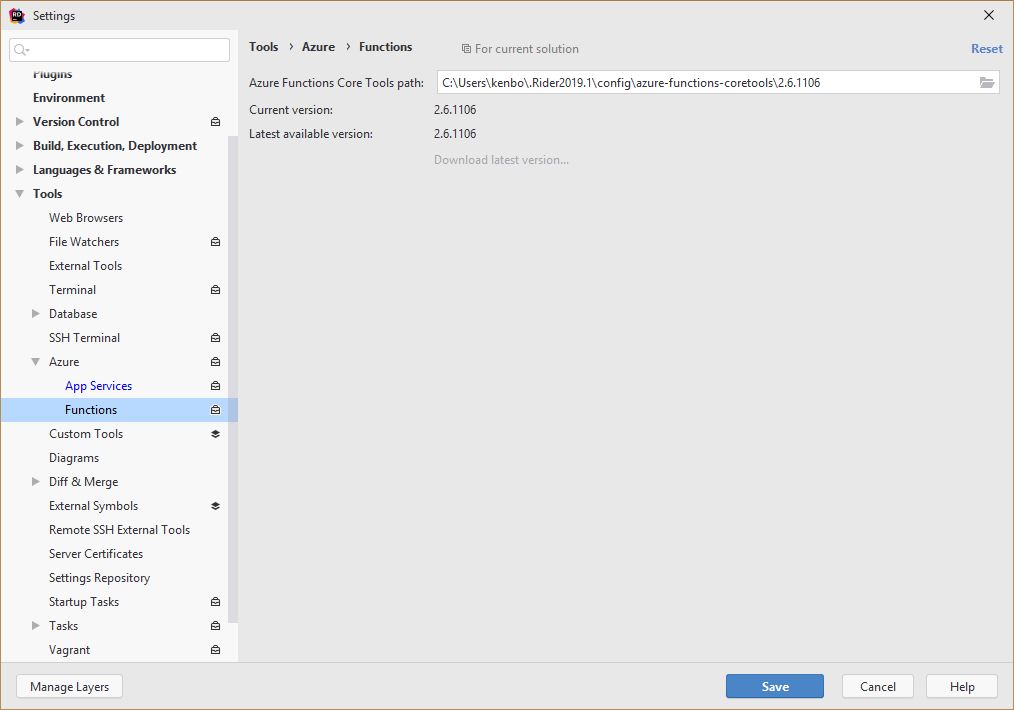
After a quick Rider restart, there is a new option in the _Settings > Tools_ tab: "Azure". Select the _Functions_ subsection, and install the latest version of the Azure Functions Core Tools. There is a link that will install the latest version automatically. Rider then downloads and installs or updates the [Azure Functions Core Tools](https://www.npmjs.com/package/azure-functions-core-tools) via NPM.
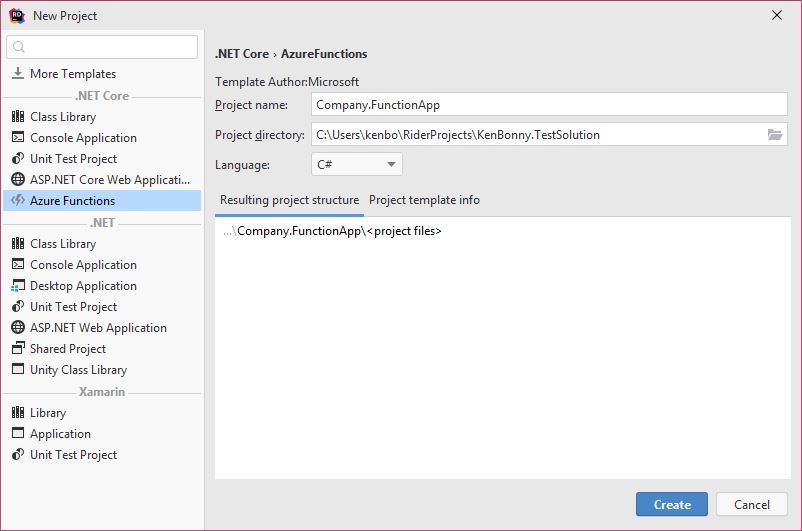
After another Rider restart (because restarting is what IT people do best), there is a new project template and several new class templates.
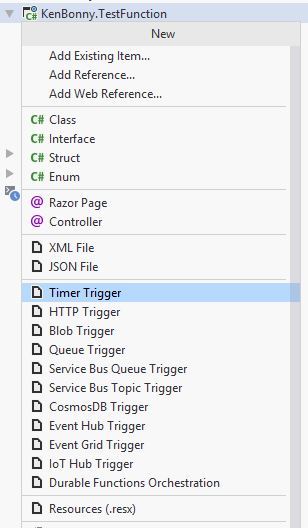
For this example, I create a _Timer Trigger_ (because that will force me to set up the Azure Storage Emulator). This adds a class with the correct attributes and method signature for a timed Function. I looked up that the default CRON expression (`0 */5 * * * *`) runs every 5 minutes. Code Hollow has a convenient [cheat sheet](https://codehollow.com/2017/02/azure-functions-time-trigger-cron-cheat-sheet/), be sure to check that out if you are creating a custom schedule.
Now that the code seems OK, I want to run this little "hello world" program. The build stops me dead in my tracks, however.

The fix is not obvious, but fortunately, [it's easy](https://github.com/Azure/azure-functions-vs-build-sdk/issues/160#issuecomment-363420298). In the projects .csproj file, the target framework is set to _netcoreapp2.1_ by default. This should be changed to _netstandard2.0_ (or whatever the latest and greatest version my dear reader is using). I know that at the time of writing dotnet core 3 just came out, but the template from Rider defaults to _netcoreapp2.1_, so I'm using the closest _netstandard_. There is either a little bug in the Rider template or there is something wrong with my setup.
```
netstandard2.0
```
Aah, a building Functions project. Now let's run it...

The next problem surfaces quite quickly. One of the debug outputs already warned me for it, but it becomes painfully clear that there is no _AzureWebJobsStorage_ setup for local development.
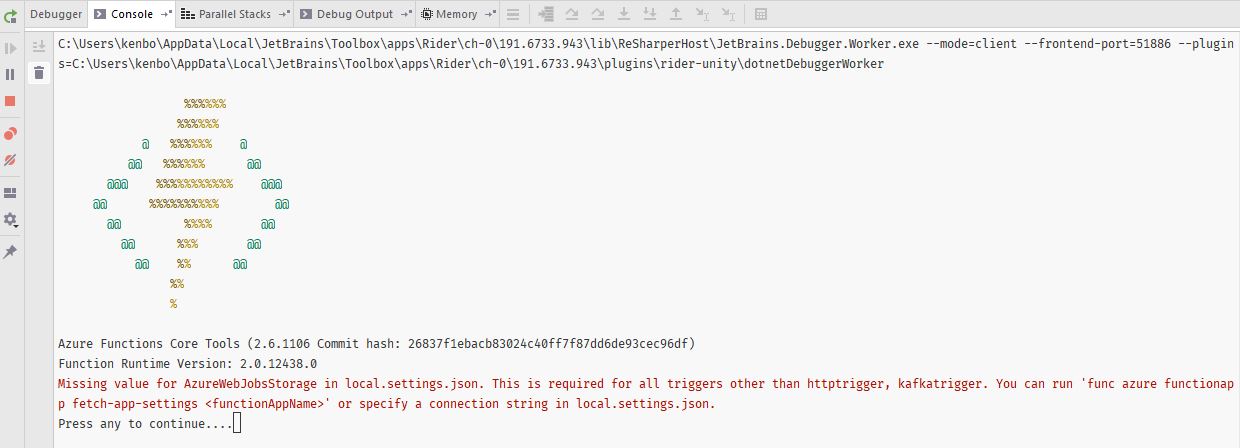
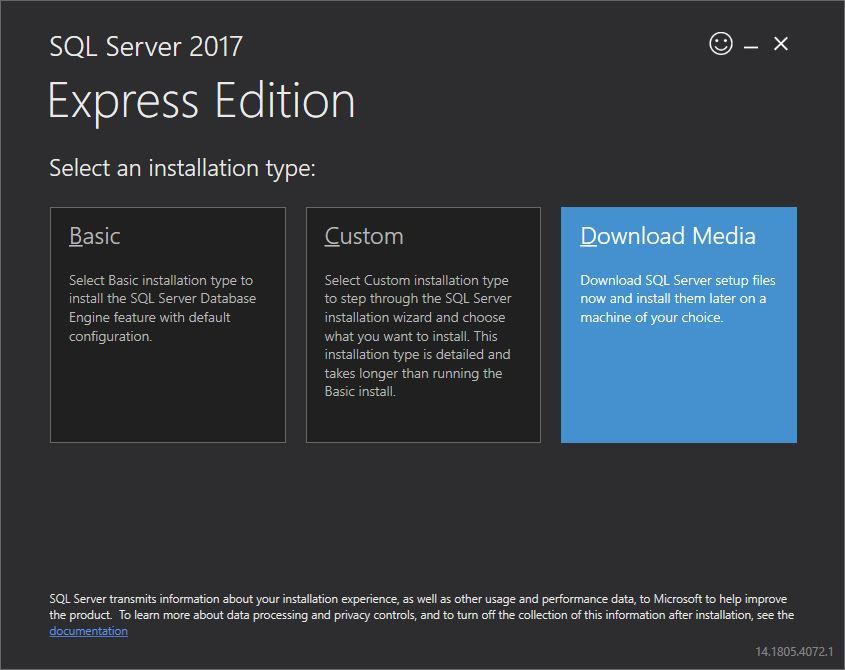
The _AzureWebJobStorage_ needs a local instance of the [Azure Storage Emulator](https://docs.microsoft.com/en-us/azure/storage/common/storage-use-emulator) or an actual web storage endpoint. What was not immediately clear for me, is that the Azure Storage Emulator needs a SQL LocalDB instance. To get the LocalDB installer, download the [SQL Express](https://www.microsoft.com/en-us/sql-server/sql-server-downloads) database. Select _Download Media_ and in the next screen, select the _LocalDB_ option.
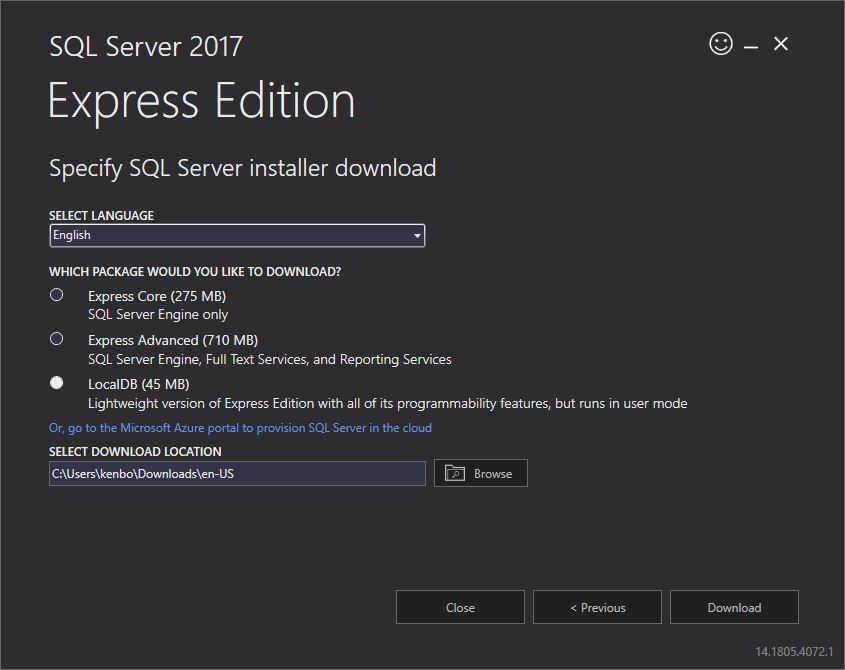
The download location will open automatically. There will be an _.msi_ installer to easily install the LocalDB database. I have accidentally installed SQL Server 2017 as well, which gave me problems while initialising the LocalDB. To circumvent those problems, install the latest [Cumulative Update](https://support.microsoft.com/en-sg/help/4484710/cumulative-update-14-for-sql-server-2017) for SQL Server 2017. The problem was that the Azure Storage Explorer didn't work properly because it could not connect properly to the LocalDB. That prevented the Azure Storage explorer form creating a database with all the tables it needs. By the way, some articles told me to manually create the `AzureStorageEmulatorDb##` database. That won't solve the problem, it will just mask the problem as the database won't have the necessary tables.
Once that's all done, verify that the LocalDB installed correctly by running this command `SQLLocalDB.exe i`. It should print out `MSSQLLocalDB`. Don't forget to start the database with the command `SqlLocalDB.exe s MSSQLLocalDB`. Now, the Storage Emulator should work, right? Wrong!
There is no database with the specific name _AzureStorageEmulatorDb59_. I found this out after I tried starting the Storage Emulator and seeing that the initialisation of the emulator crashed. So, I tried running the command:
```
> AzureStorageEmulator.exe init
Windows Azure Storage Emulator 5.9.0.0 command line tool
Found SQL Instance (localdb)\\MSSQLLocalDB.
Creating database AzureStorageEmulatorDb59 on SQL instance '(localdb)\\MSSQLLocalDB'.
Cannot create database 'AzureStorageEmulatorDb59' : The database 'AzureStorageEmulatorDb59' does not exist. Supply a valid database name. To see available databases, use sys.databases..
One or more initialization actions have failed. Resolve these errors before attempting to run the storage emulator again.
Error: Cannot create database 'AzureStorageEmulatorDb59' : The database 'AzureStorageEmulatorDb59' does not exist. Supply a valid database name. To see available databases, use sys.databases..
```
To remedy this, open [SQL Server Management Studio](https://docs.microsoft.com/en-us/sql/ssms/download-sql-server-management-studio-ssms?view=sql-server-2017), connect to the LocalDB instance and create a database with the name `AzureStorageEmulatorDb59`. I tried doing this in Rider with the built in DataGrip tools, but I got an error. I've [reported](https://youtrack.jetbrains.com/issue/RIDER-27528#issueId=RIDER-15209) this, so it will get fixed in the future.
** See earlier remark about the Cumulative Update!** That should prevent this error from happening. I'm keeping it in as I think others will run into the same problem.
Now that the database is set up, I can finally start the storage emulator. All I have to do is fill in the `AzureWebJobsStorage` with `UseDevelopmentStorage=true`. All set, lets run the function. Unfortunately, the output still complains that the `AzureWebJobsStorage` still isn't filled in. After some checking in the config and the place where the function runs, it appears that the `local.settings.json` file is not being copied. So, I change the `Copy to output directory` setting in the file properties to `Copy Always`. Now the Azure function starts up and a minute later, the breakpoint in my function is hit.
To make my life easier, I should add some "Before launch" external tools arguments in the _Run/Debug Configuration_ so the LocalDB and Azure Storage Emulator start before each run. I think I'll set that up later.
Now everything is set up correctly. I can run and debug Azure Functions with Rider. It's not as transparent process as I'd hoped it would be, but it was a good learning experience for me.